
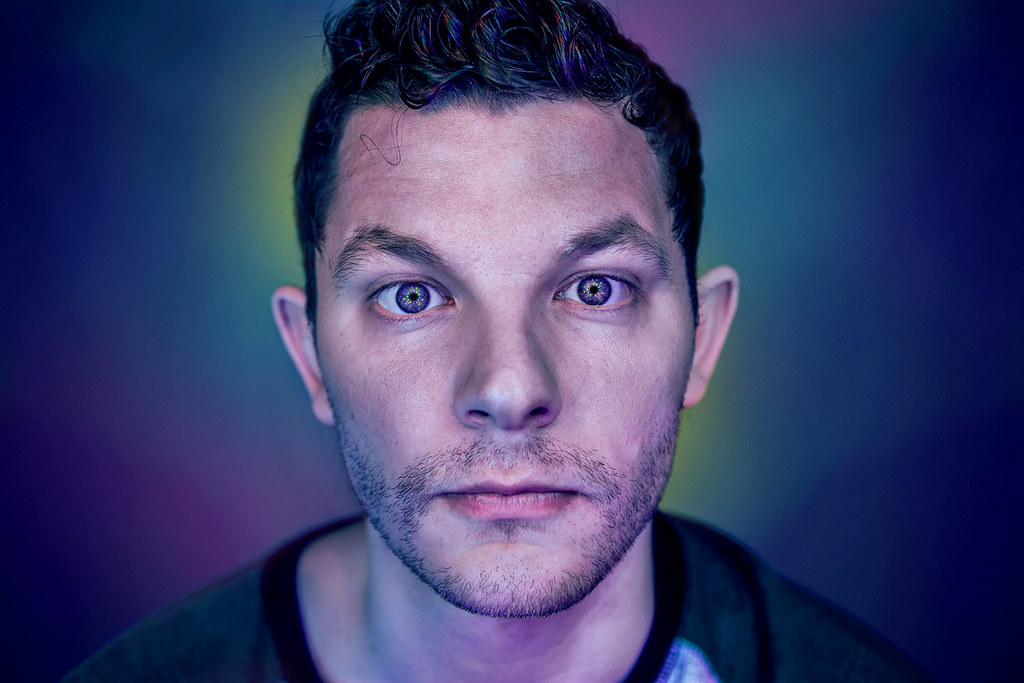
© 2010 Jeff ripples_done

Curves Explained 2: Photoshop Tutorial

A couple weeks ago, I introduced the Curves tool in Photoshop and explained how it works (jeffcreech.com/blog/?p=350). Today, I was hoping to expand my tutorial to include how I actually use curves in my traditional workflow. I think the easiest way to start is by including an image:

ripples

As you can see, this pictures lacks a lot of pop and could definitely benefit from some added contrast. As it is now, the image looks rather flat, although it clearly has the potential to be something more. Open the image in Photoshop and navigate to the adjustment map menu located at the bottom of the layer window. Select Curves, which I conveniently highlighted with a red box.

ripples2

Once you select Curves, a window should pop up, showing the graphical display that I explained in my last blog post. We know from my last tutorial, that we are going to want to create a S-curve. A S-curve produced additional contrast by darkening the shadows and lightening the highlights. One approach to creating this S-curve is to simply select two random points on the line and manipulate the curve until the image looks appropriate. A more refined approach involves selecting two points on the line by using the actual image values as reference points. To help you understand, take a look at the image below. By command + left clicking (cntrl + left click on PC) a point on the image, we conveniently identify that pixel’s location on the line. I start by locating an area of the image that I would like to be brighter, and cmd+left clicking in that area (denoted by a red circle). I then locate an area that I would like to be darker and opt+left click within that area (denoted by the other red circle).

ripples3

Once the points are identified on the line, I use them to make my adjustments. In this image, you can see where I have drug the most-right point up, effectively brightening the highlights of the image.

ripples4

Next, I darken the shadows by dragging the left point downwards.

ripples5

We are now left with an image that has significantly more contrast than the original.

ripples_done

While the main purpose of curves is to adjust contrast, it also has the ability to correct white balance. Luckily, I shot the above image in RAW and was able to make some slight tweaks in the color balance. As you can see, this image is now much too warm. Let’s use curves and another simple tool, threshold, to correct the white balance. Start, by navigating to the layer adjustment map and selecting Threshold. The Threshold command converts grayscale or color images to high-contrast, black-and-white images. You can specify a certain level as a threshold. All pixels lighter than the threshold are converted to white; all pixels darker are converted to black. This becomes important to know because the next step after the threshold command is to select a pixel in the image that we would like Photoshop to represent as a pure white pixel.

ripples6

Drag the white arrow, all the way to the right side of the histogram. Now slowly drag the arrow to the left, until we start to see white pixels. I like to go a little bit further after seeing the initial white pixels, so that the change is more drastic. We will want to mark these pixels, so that we can easily select them in the later steps.

ripples7

To do this, turn Caps-Lock on, and you should see that your eye dropper has turned into a crosshair. Navigate toward the white pixels and shift+click to leave a crosshair marker. We are going to use this point later in the process as a reference point. Exit out of the threshold window after leaving the marker, and create a Curves adjustment map. Click on the eyedropper tool that I have highlighted in red to select the white eyedropper tool. Make sure caps-lock is still on and match your mouse pointer (which should still be a cross hair) with the marker. Once you are directly matched up with the marker, you should see that it disappears. Click the left click to set this point as the new white point.

ripples8

Here is the image with both techniques in this tutorial performed on it.

rippleswb_done

While this technique does fairly well at correcting minor inaccuracies in white balance, it struggles with images that are badly affected my improper white balance. In those instances, it is best to use the Color balance tool. Or if you are smart, you shoot in RAW and can do it in your RAW editing software.

Check back next week, for my explanation of Levels and its uses in altering contrast.

13 Responses to “Curves Explained 2: Photoshop Tutorial”

  1. Good fill someone in on and this mail helped me alot in my college assignement. Thank you for your information.

  2. RSS feed is not working in chrome, Kindly fix it.

  3. This is a really good read for me. Must admit that you are one of the best bloggers I ever saw. Thanks for posting this informative article.

  4. chi hair says:

    this one of my best blog i have been to , i wil definetly bookmark you . thanks a lot

  5. SusanMillerr says:

    Hello Everyone,

    I’ve been looking to figure out a place to start the acai free trial and was just wondering if anyone had some thoughts on whether or not the stuff works for dieting? So far here is the 1 article I’ve been able to come across that seemed real for what my goals are. Opinions?

  6. warez says:

    I consider, that you are not right. I suggest it to discuss.

  7. Sorry for my bad english. Thank you so much for your good post. Your post helped me in my college assignment, If you can provide me more details please email me.

  8. Awesome posts! Keep up the great work.

  9. All it certainly is interesting but how to live further?

  10. Thank you for your post. I hadn’t considered that perspective before.

  11. Sup, what web log platform are you using? It looks great.

  12. Lisara says:

    What interesting question

Leave a Reply

You must be logged in to post a comment.